
Operating System
Cyber threats evolve daily, but these 10 actionable tactics will fortify your digital defenses—whether you use Windows or Mac. From password protection to advanced monitoring, these proven strategies shield your data without requiring technical expertise.
Enable Multi-Factor Authentication Everywhere
If your email or bank account feels like a fortress with a single locked door, multi-factor authentication (MFA) is the second lock you’ve been missing. Studies show it blocks 99% of automated attacks, making it the single most effective defense against account takeovers—especially for financial and communication platforms where breaches hit hardest.
Most services (Google, Microsoft, Apple, and even social media) support SMS codes, authenticator apps (like Authy or Google Authenticator), or biometric scans—all of which add layers beyond passwords. The best part? Setup takes under two minutes per account, and many platforms now offer zero-configuration options via smartphone prompts. For high-risk accounts, pair SMS with an app-based code for extra security.
This is non-negotiable for anyone managing banking, email, or cloud storage—start with your most critical accounts today. 🌟
Use a Password Manager with Built-In Breach Monitoring
Tired of forgetting passwords or reusing weak ones across accounts? A password manager with breach monitoring solves both problems at once—generating unique, strong passwords automatically while scanning the dark web for exposed credentials.
Tools like Bitwarden (free and open-source) or 1Password (user-friendly) create 256-bit encrypted vaults for all your logins. When a breach occurs, they send instant alerts so you can change compromised passwords before attackers exploit them. The Dark Web Monitoring feature scans billions of records daily, giving you peace of mind for accounts like banking, email, and shopping.
This is especially valuable for professionals juggling multiple work accounts or anyone who’s ever clicked "Forgot Password?" more times than they can count. Start with a free tier to test the automation—your future self will thank you. ✨
Implement Windows Defender or MacOS XProtect Updates
If you’ve ever wondered why your computer runs smooth security checks in the background, that’s likely Windows Defender or macOS XProtect doing its job. These built-in tools aren’t just placeholders—they’re powerful, regularly updated security suites designed to block malware, spyware, and phishing attempts without the overhead of third-party software.
Windows Defender now includes real-time threat intelligence from Microsoft’s global security network, while XProtect on macOS leverages Apple’s curated database of known malicious files. Both update automatically, meaning you get protection against the latest threats without lifting a finger. For Windows users, Defender’s cloud-delivered protection adds an extra layer by analyzing files against Microsoft’s threat database in real time.
This is ideal for users who prefer lightweight, no-frills security or those concerned about the resource drain of third-party antivirus. Just ensure your OS is updated—these tools only work as well as the intelligence they receive. ✨
Create Regular System Restore Points
Forget complex backups—Windows and Mac both include built-in system recovery tools that let you snapshots of your OS before major updates or risky tweaks. These restore points act like a digital time machine, letting you roll back to a stable state in minutes without losing personal files.
On Windows, use System Restore (via Control Panel > Recovery) to create manual points or enable automatic scheduling for critical updates. Mac users can rely on Time Machine (built into macOS) for full-system snapshots, or use Terminal commands like tmutil for granular control. Both methods require minimal storage space—just 5-10GB for critical system files—and can neutralize malware or fix broken updates instantly.
This is your last-resort safety net for users who skip backups or test new software. Set one before major changes—like installing beta apps or updating drivers—and you’ll avoid hours of reinstallation. 💻
Disable Macros in Office Documents
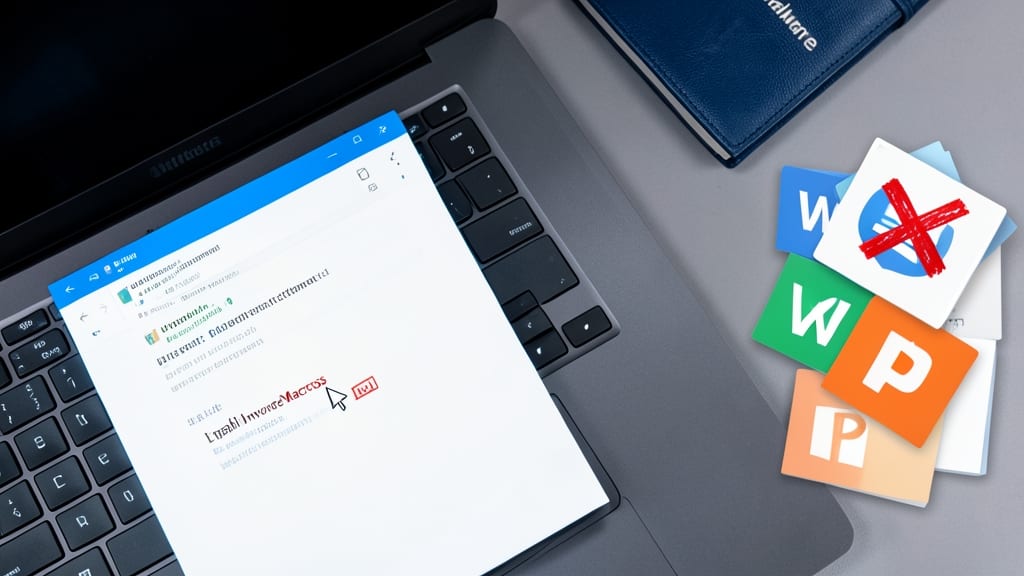
Phishing emails often hide malicious code inside Office documents—and macros are the most common delivery method. Disabling them in Word, Excel, and PowerPoint shuts down this attack vector before it even reaches your system, making it one of the simplest yet most effective security moves you can make.
To disable macros, open any Office app, go to File > Options > Trust Center > Trust Center Settings, then select Macro Settings. Choose "Disable all macros without notification" for maximum security, or "Disable all macros with notification" if you occasionally need them. This setting applies to all Office files by default, blocking VBA-based malware that could steal data or encrypt your files.
Professionals handling contracts, financial reports, or client presentations should prioritize this—especially if you receive unsolicited documents via email. It takes less than a minute to set up and could save hours of cleanup later. ✨
Enable Firewall Rules for Specific Applications
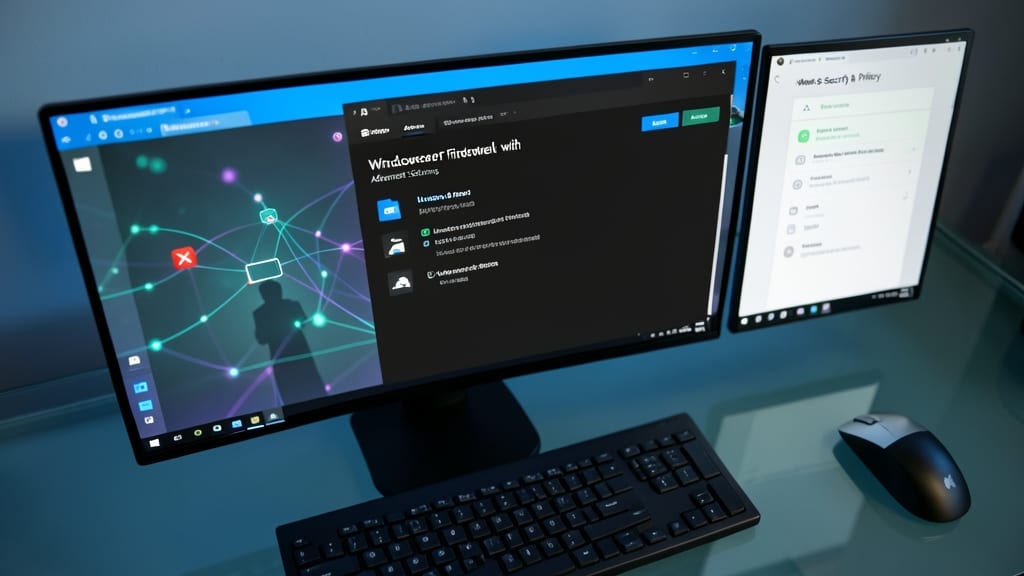
Worried about shady programs secretly sending your data to unknown servers? Application-level firewall rules let you lock down network access for specific programs—like a digital bouncer for your internet traffic.
On Windows, use Windows Defender Firewall with Advanced Settings to block or allow apps by name (e.g., restrict a suspicious download). MacOS offers similar controls via System Preferences > Security & Privacy > Firewall, where you can whitelist trusted apps while blocking others. This stops malware from phoning home—even if it slips past antivirus. For extra precision, tools like Little Snitch (Mac) or GlassWire (Windows) provide real-time monitoring of outgoing connections.
Perfect for power users, developers, or security-conscious professionals handling sensitive data. It’s the digital equivalent of a TSA checkpoint for your network. 💻
Regularly Update All Software Including Browsers
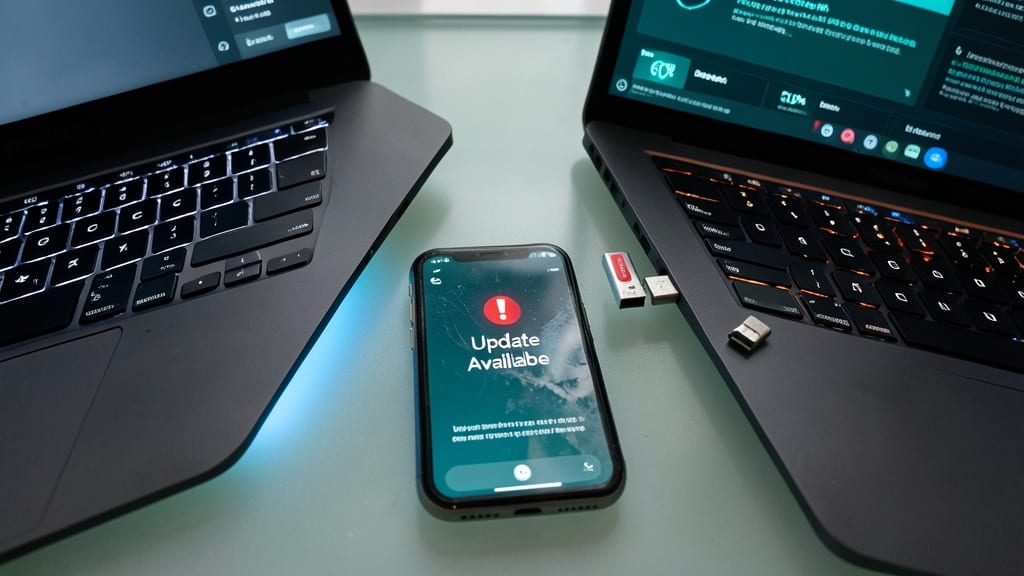
If you’ve ever ignored that pesky "Update Available" notification, you’ve left your devices vulnerable to exploits attackers actively hunt for. Cybersecurity researchers report that unpatched software accounts for 60% of successful breaches, making updates your first line of defense against malware and ransomware.
Most modern operating systems—like Windows 11 and macOS Ventura—now push critical updates automatically, but you’ll still need to manually update browsers (Chrome, Firefox, Edge) and apps (Adobe Suite, Zoom, Slack). Pro tip: Use tools like Patch My PC (Windows) or MacUpdate Desktop to centralize updates across all devices, ensuring nothing slips through the cracks.
This is especially critical for users juggling multiple devices (laptops, phones, smart TVs) or those who delay updates due to fear of breaking systems. Set a monthly reminder—your future self (and hackers) will thank you. ✨
Monitor Credit Reports for Unusual Activity

If you’ve ever ignored a credit card statement or assumed "it’ll never happen to me," identity theft is waiting to exploit that blind spot. Fraudsters strike fast—opening accounts in your name, draining savings, or even ruining your credit score before you notice. The key? Real-time monitoring of your credit reports so you catch suspicious activity before it becomes a nightmare.
Services like Experian, Equifax, or Credit Karma offer free weekly credit report checks (thanks to federal law) and instant alerts for new accounts, hard inquiries, or address changes. For deeper protection, LifeLock or IdentityForce provide 24/7 dark web monitoring—scanning for leaked personal data like Social Security numbers or passwords. Most plans cost under $20/month and include $1M in identity theft insurance as a bonus.
This is non-negotiable for freelancers, small business owners, or anyone with sensitive financial data online. Even if you’re not tech-savvy, setting up these alerts takes five minutes and could save you thousands in fraud recovery. 💡
Use Virtual Machines for High-Risk Activities

Curious about that sketchy email attachment or shady website link? Instead of risking your entire system, virtual machines (VMs) act as a digital sandbox—keeping malware contained while you investigate safely.
Tools like VirtualBox (free) or VMware Workstation let you run a separate OS (Windows, Linux, etc.) with full hardware isolation. Snapshots let you revert to a clean state instantly, and USB passthrough lets you test infected drives without touching your main machine. Even Windows Sandbox (built into Windows 10/11) offers disposable, lightweight VMs for one-time tasks.
Researchers, developers testing untrusted code, or anyone handling suspicious downloads will find VMs indispensable. It’s like wearing a hazmat suit for your digital experiments. 💻
Educate Family Members About Phishing Scams
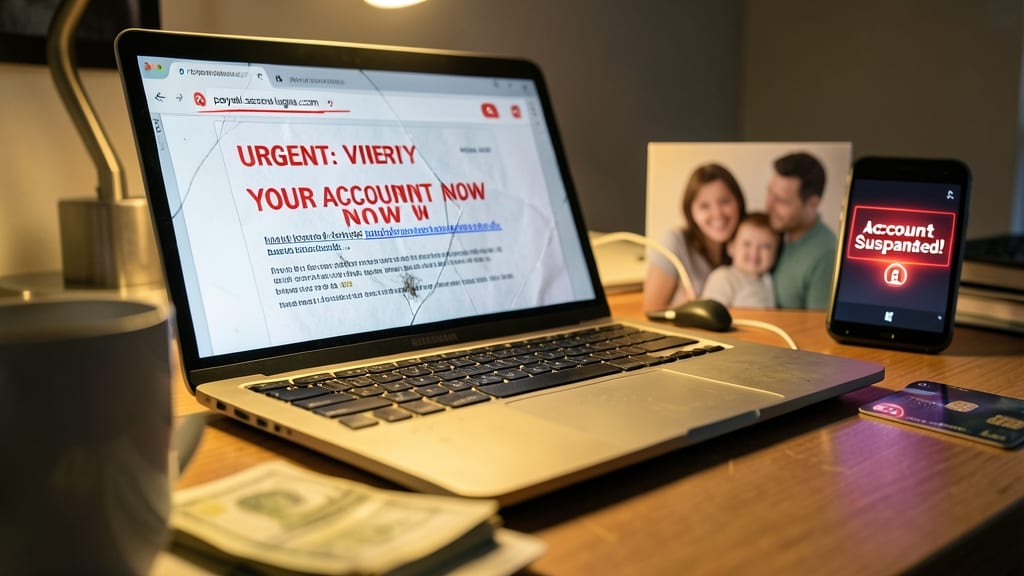
Phishing scams account for 90% of all cyberattacks, and most victims aren’t tech experts—they’re just trusting the wrong email or link. Teaching your family simple red flags (like mismatched URLs or urgent "verify your account" messages) can prevent financial losses and identity theft for the whole household.
Start with the FBI’s free phishing awareness guide, which breaks down common scams like fake invoices or "too good to be true" deals. Practice spotting suspicious emails together—look for generic greetings ("Dear User") or requests to download attachments. Tools like Google’s Interland (a gamified training module) make learning interactive for all ages.
Parents, caregivers, and even tech-savvy teens benefit from this—because one click can compromise an entire family’s security. Make it a monthly habit, and watch your household’s defenses strengthen. 💪