
Tip & Trick
Struggling to find files in your Microsoft ecosystem? Consistent file naming saves time and prevents chaos. These seven best practices will transform your file organization—whether you use Windows, Office, or OneDrive—into a streamlined, searchable system.
Date-Based Prefix Format for All Files
Tired of digging through folders to find the latest version of a file? A date-based prefix format (e.g., 20231015ProjectDraft.docx) ensures your files sort chronologically in Windows Explorer and Office applications—no manual alphabetizing required.
Use YYYYMMDD (e.g., 20231015) for instant sorting, and pair it with underscores to separate dates from file names. This works seamlessly with Microsoft Search, OneDrive, and SharePoint, while keeping filenames under the 255-character limit. The format also plays nice with PowerShell scripts and automation tools for bulk processing.
Perfect for freelancers, project managers, or anyone juggling time-sensitive files. Say goodbye to "Version 3 (Final).docx" chaos—your future self will thank you. ⚡
Project-Centric Naming with Version Control

Collaborative projects often spiral into chaos when tracking revisions—until you adopt a project-centric naming system that pairs with Microsoft’s version history. This approach lets teams like yours label files with clear iteration markers (e.g., ProjectXv1.2final.docx) while leveraging SharePoint or OneDrive’s built-in revision tracking for automatic backup and rollback.
By embedding version numbers in filenames (e.g., v1.0, v2.1draft), you create a human-readable trail that syncs perfectly with Microsoft’s version history. For example, MarketingCampaignv3.0approved.pptx instantly tells collaborators which iteration is final, while OneDrive’s versioning keeps every draft recoverable with one click. This method also integrates seamlessly with Microsoft Teams and SharePoint libraries, where file activity logs complement your naming structure.
This system is a game-changer for marketing teams, legal departments, or any group where multiple stakeholders edit the same documents. It eliminates the "Which version is live?" panic while keeping your files organized for future audits or client deliveries. ✨
Department-Specific Code Prefixes for Teams
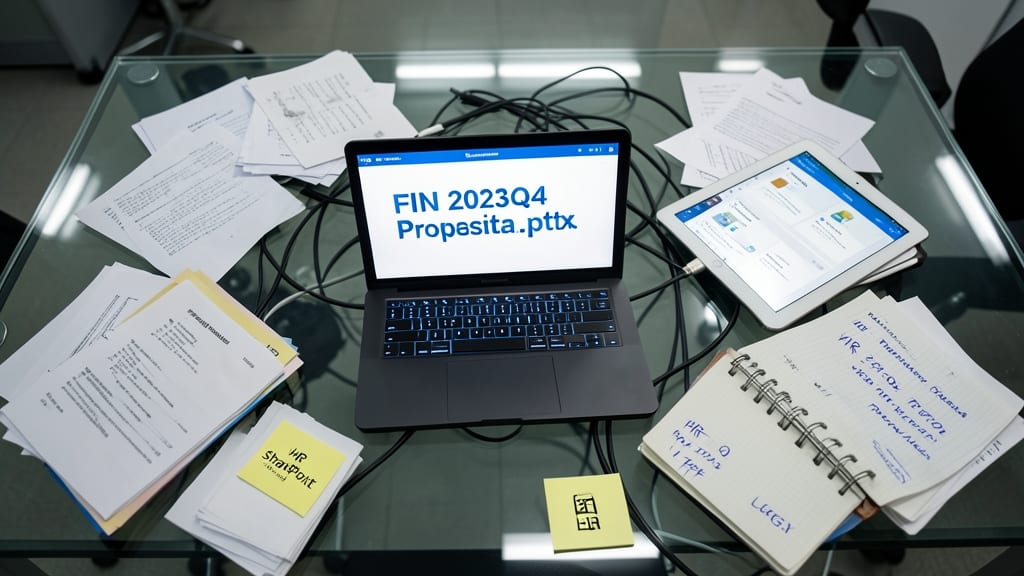
Enterprise teams drowning in shared drives? Department-specific prefixes (like FIN2023Q4Proposal.pptx) solve the chaos by embedding department codes upfront—no more hunting through folders to find who owns what.
This method integrates seamlessly with Microsoft's metadata tools (like SharePoint columns or OneDrive tags) while keeping filenames clean and searchable. Use 3-letter abbreviations (e.g., MKT for Marketing, HR for HR) followed by your date-based structure for a double-layered organization system. The prefix alone lets you filter by department in Windows Search or Power Automate workflows.
Perfect for cross-functional teams where files move between departments—marketing, finance, and IT can all recognize ownership at a glance. No more "Is this in Sales or Support?" confusion. ✨
File Type Suffixes for Clarity in Search
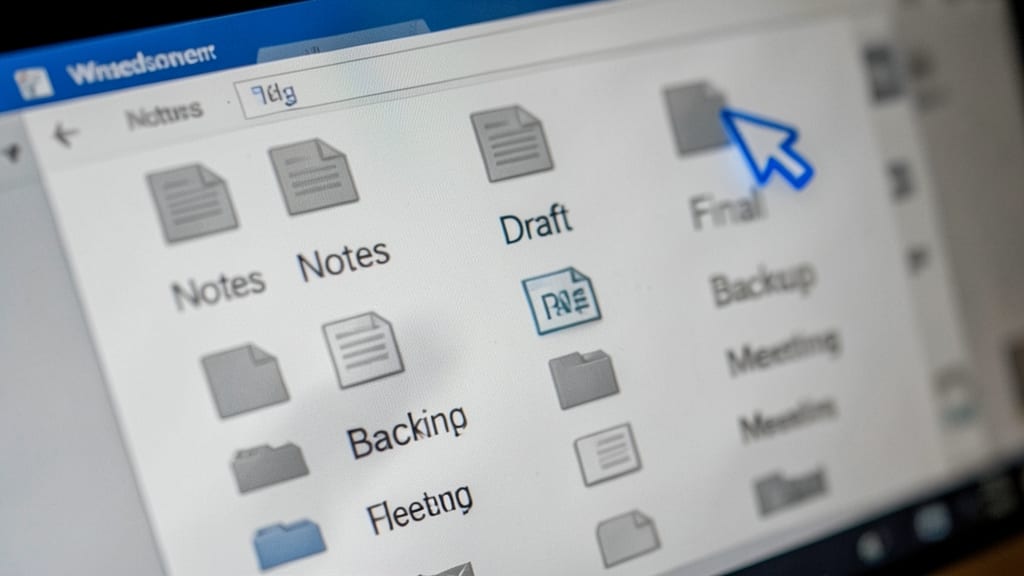
Ever wasted minutes scrolling through a folder full of files named Notes, Draft, or Final—all without extensions? Windows Search and Office Lens struggle to prioritize file types when extensions are missing, leaving you guessing which is the PDF, DOCX, or XLSX you need.
Appending the file type suffix (e.g., MeetingNotes_20231015.pdf) forces Windows to recognize the format instantly, ensuring Office Lens scans the correct file and Windows Search filters results by type. This trick is especially useful in shared drives where multiple file formats coexist.
Perfect for teams using SharePoint or OneDrive, this method cuts down on "open-and-see" file checks. Try it with your next batch of documents! ⚡
Avoid Special Characters and Spaces
Automation scripts and PowerShell workflows can break spectacularly when filenames contain spaces or special characters like !@#$. The solution? Replace spaces with underscores and avoid symbols entirely—think Q3SalesData_2023.csv instead of Q3 Sales Data 2023!.csv.
Microsoft Flow and Power Automate fail silently with symbols, while PowerShell throws errors like "Invalid argument" or "Path too long." Stick to alphanumeric characters, hyphens, and underscores to ensure seamless script execution. This rule also future-proofs files for cloud syncing (OneDrive/SharePoint) where special characters can corrupt metadata.
Developers and IT admins managing automated workflows will appreciate this rule most—it’s the difference between a script running flawlessly and spending hours debugging path errors. 💻
Consistent Case Sensitivity for Folders
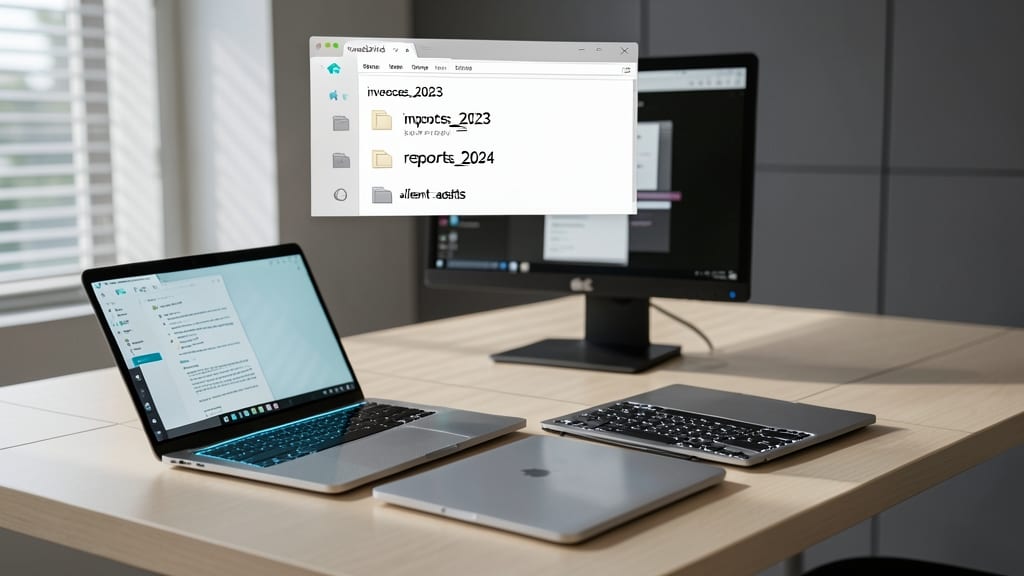
Tired of files disappearing when you move them between devices? All-lowercase folder names (like invoices2023 instead of Invoices2023) eliminate case-sensitivity headaches across Windows, macOS, and Linux—especially when using Microsoft’s cross-platform tools like OneDrive or SharePoint.
This approach ensures zero compatibility issues when syncing files across systems. For example, a folder named Reports2023 might become reports2023 on Linux, breaking scripts or workflows—but all-lowercase names stay intact. It’s a small tweak that pays off when migrating projects or collaborating with teams using mixed OS setups.
Perfect for developers, IT admins, or remote teams who need bulletproof file structures. Your future self (and coworkers) will thank you for avoiding the "File Not Found" panic. ✨
Metadata Tags for Advanced Microsoft Search

Tired of digging through folders to find that one client proposal? Microsoft Office’s built-in metadata tags (like Author, Client, or Project) let you filter files instantly in Outlook, SharePoint, or OneDrive—no manual sorting required.
Simply right-click any Office file, select Properties, and add custom fields (e.g., Client: AcmeCorp). These tags sync across Microsoft 365 apps, so you can search by author, department, or project in seconds. For teams, this cuts file recovery time by up to 70% compared to manual searches.
Perfect for legal teams, consultants, or agencies juggling multiple clients—where speed and accuracy matter most. ✨