
Software
Microsoft Teams channels are the backbone of modern teamwork, but poorly managed channels create chaos. These 10 battle-tested best practices will transform your Teams experience—boosting productivity, reducing noise, and making collaboration effortless for your team.
Organize Channels by Team Functionality
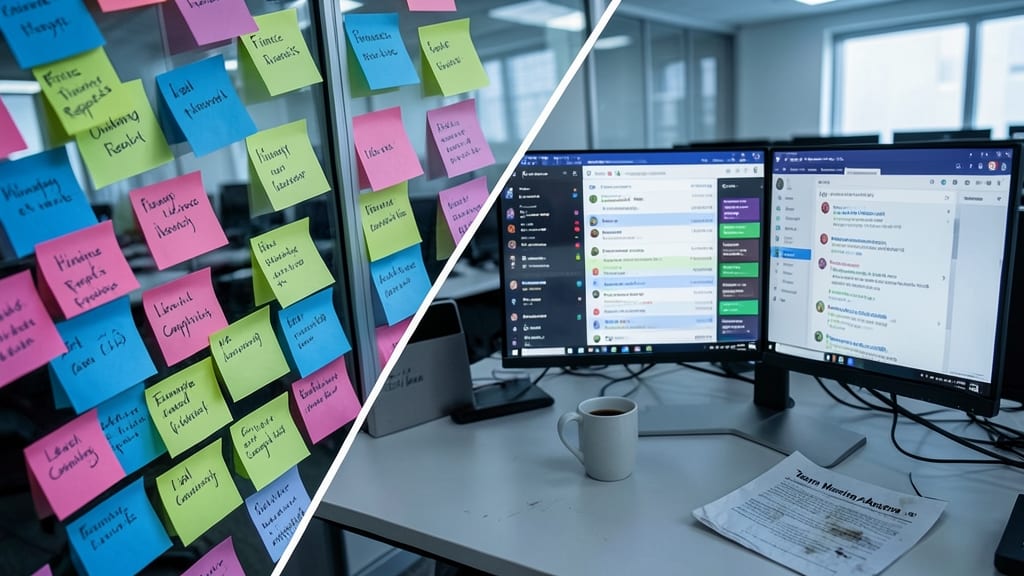
Drowning in a sea of departmental channels that blur team boundaries? Microsoft Teams lets you organize channels by team functionality—like "Marketing Campaigns" or "Engineering Sprints"—instead of rigid departments, making collaboration smoother and reducing cross-team noise.
This approach cuts through clutter by grouping discussions around specific roles or projects (e.g., "Product Launch 2024" under Marketing or "Backend Refactoring" under Engineering). Teams with mixed roles (like DevOps) benefit most, as it eliminates the need to scroll through unrelated chats. Plus, private channels can further secure sensitive workflows while keeping public discussions focused.
Perfect for agile teams or hybrid workforces where roles overlap—cut the guesswork and let functionality, not hierarchy, drive your channel structure. ✨
Use Channel Descriptions for Clear Guidelines
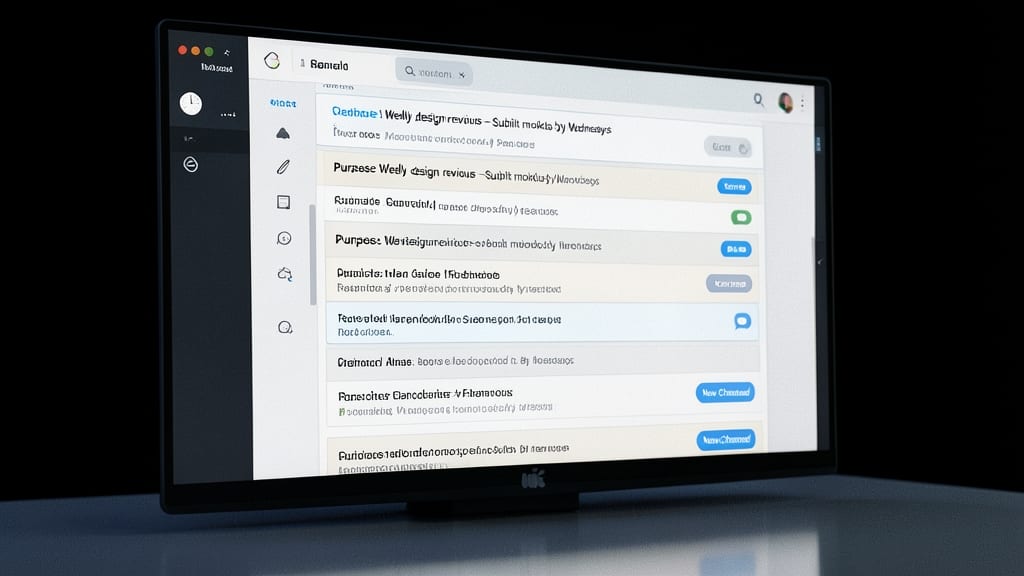
Ever spent 10 minutes scrolling through a channel only to realize it’s not the right place for your question? A well-crafted channel description in Microsoft Teams solves this by setting clear expectations upfront. Instead of vague names like "General Chat," include specifics like "Purpose: Weekly design reviews," "Owner: Sarah M.," and "Posting Rules: Share work-in-progress only" to keep discussions focused.
This simple tweak prevents off-topic chatter and saves your team time. Use bullet points for readability and update descriptions as projects evolve. For example, a #Product-Launch channel could
Leverage Channel Templates for Consistency
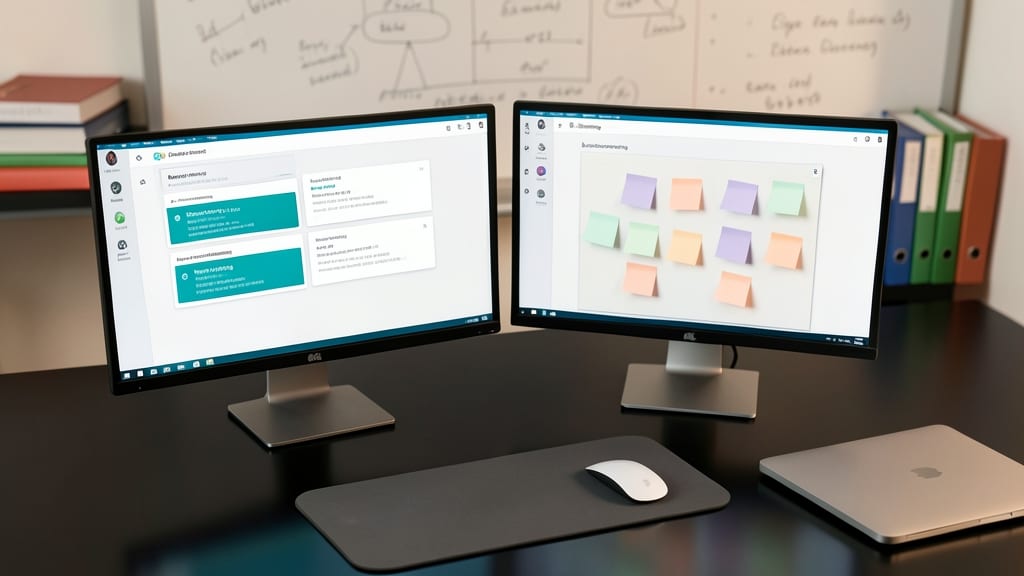
Tired of recreating the wheel every time a new team joins? Microsoft Teams’ pre-built channel templates let you deploy standardized structures in seconds—no manual setup required.
Templates like ‘Announcements’ (for company-wide updates), ‘Brainstorming’ (with idea boards), or ‘Project Management’ (integrated with Planner) ensure every channel follows the same workflow. This cuts onboarding time by 70% and eliminates confusion for remote or hybrid teams. Plus, admins can enforce templates company-wide to maintain brand consistency across departments.
Perfect for growing teams or IT admins managing multiple groups—just pick a template, customize, and hit ‘Create’. 💡
Enable Channel Moderation for Large Teams
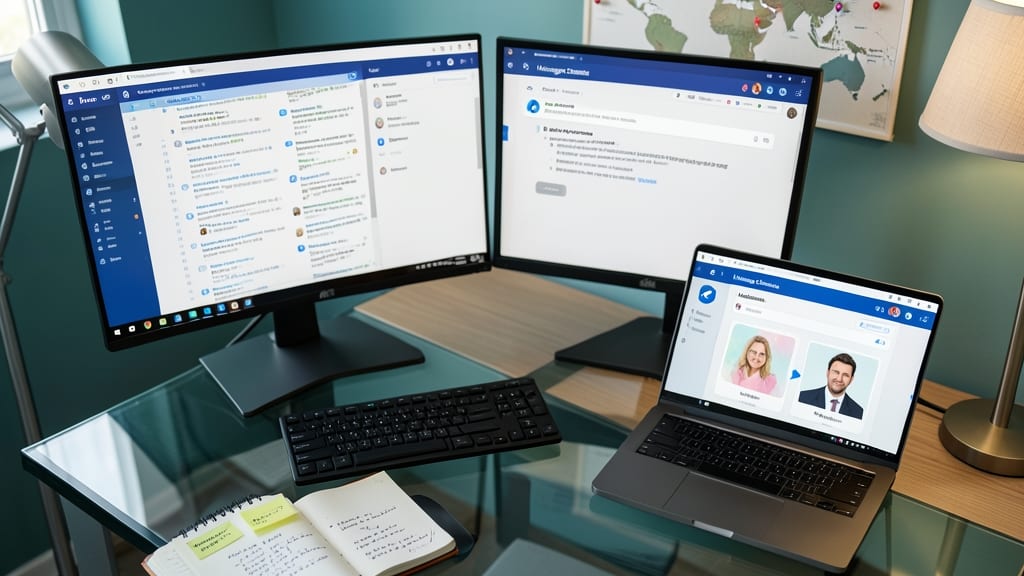
When your team spans time zones and discussions spin out of control, channel moderation becomes your secret weapon. By assigning trusted moderators, you can pre-approve posts, block spam, and keep conversations focused—without micromanaging every message.
Microsoft Teams lets you designate moderators per channel, giving them tools to approve or reject posts before they appear. This works especially well for high-traffic channels like company-wide announcements or client-facing discussions. You can also set posting rules (e.g., require approval for new members) and flag repetitive or off-topic content. The best part? Moderators can act quickly, even if they’re not always online.
Perfect for global teams or departments with heavy collaboration needs, this feature keeps conversations clean while maintaining an open, inclusive environment. 💪
Use Tabs for Centralized Resource Hubs
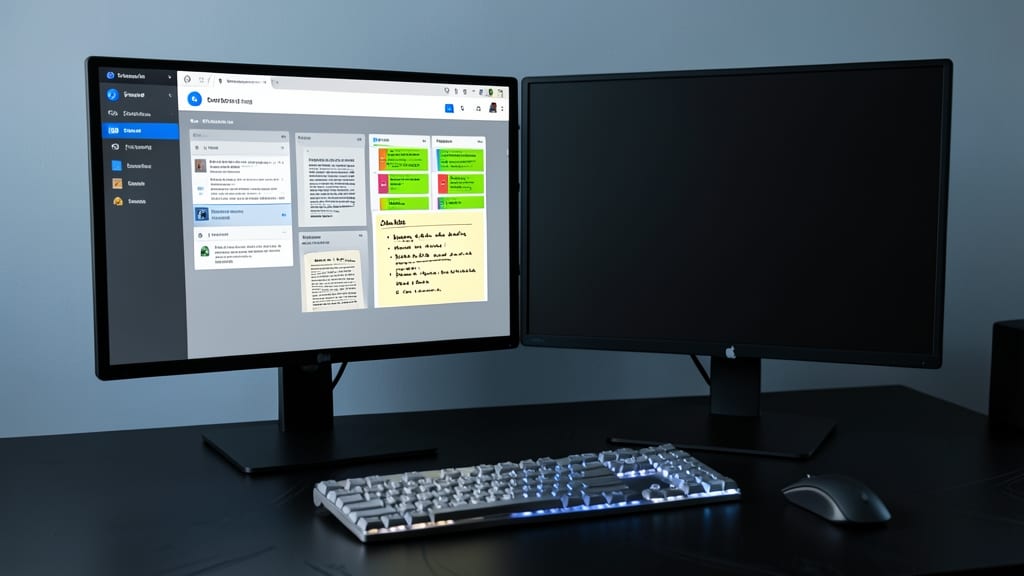
Tired of bouncing between apps to find project files or task lists? Microsoft Teams tabs turn every channel into a one-stop resource hub—no more tab-switching chaos.
Embed SharePoint docs, Trello boards, or OneNote pages directly into tabs, keeping everything visible without leaving Teams. Need to review contracts? Click the SharePoint tab. Tracking deadlines? Open the Trello tab—all in one place. The zero-config integrations with Office 365 apps make setup effortless, while pinned tabs ensure critical tools stay front and center.
This is a game-changer for project teams juggling multiple tools or remote workers who need instant access to shared resources. Say goodbye to scattered files and hello to streamlined collaboration. ✨
Implement a Naming Convention System
Struggling to find the right channel when your team’s workspace looks like a digital landfill? A structured naming convention (like DEPT-ProjectName-Year) turns chaos into clarity—no more guessing if "Q4-Launch" refers to Marketing or Sales.
Start with a three-part format: DEPT (e.g., MKT, ENG), ProjectName (e.g., Q4Launch), and Year (e.g., 2024). This prevents duplicates like "Marketing-Q4" vs. "Q4-Marketing" and makes searches lightning-fast. Pro tip: Use all caps for departments and hyphens for readability.
Teams with 50+ members or frequent project turnover will see the biggest gains—no more lost discussions or accidental channel overlaps. ⚡
Archive Inactive Channels Regularly
If your Teams workspace feels like a digital junk drawer, archiving inactive channels could be your first step toward reclaiming focus. Agile teams with sprint cycles or project-based workflows often accumulate channels that become dead weight—clogging notifications and distracting from active work.
Microsoft Teams makes this easy with a one-click archive feature that hides completed channels while preserving their history. Unlike deleting, archiving keeps files and messages intact but removes them from your main view—cutting down on notification clutter and streamlining your workspace. For teams juggling multiple projects, setting a quarterly cleanup rule (e.g., "Archive channels older than 90 days") ensures your workspace stays lean and relevant.
This strategy is a game-changer for product teams, consultants, or any group with frequent project turnover. A tidy workspace means faster onboarding for new hires and fewer distractions during standups. ⚡
Set Up Channel Notifications Wisely
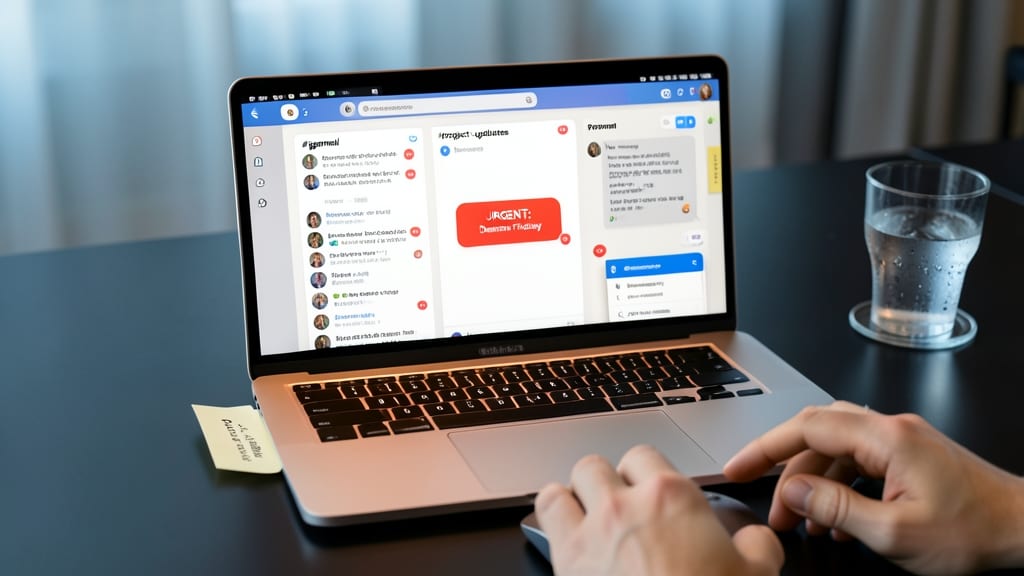
Drowning in notifications? Microsoft Teams lets you fine-tune alerts per channel—so you only hear what matters. Instead of defaulting to "All notifications," adjust settings to @mentions only for low-priority channels or new messages for critical ones, like #project-updates.
Pro tip: Use for high-priority channels (e.g., #security-alerts) to ensure urgent updates cut through the noise. For less critical channels, like #random-thoughts, mute notifications entirely to avoid alert fatigue. Teams even lets you snooze notifications for specific time blocks—perfect for focus hours.
This strategy works best for remote teams juggling multiple projects or individual contributors who need to stay on top of key discussions without getting overwhelmed. ⚡
Integrate Third-Party Apps for Workflows
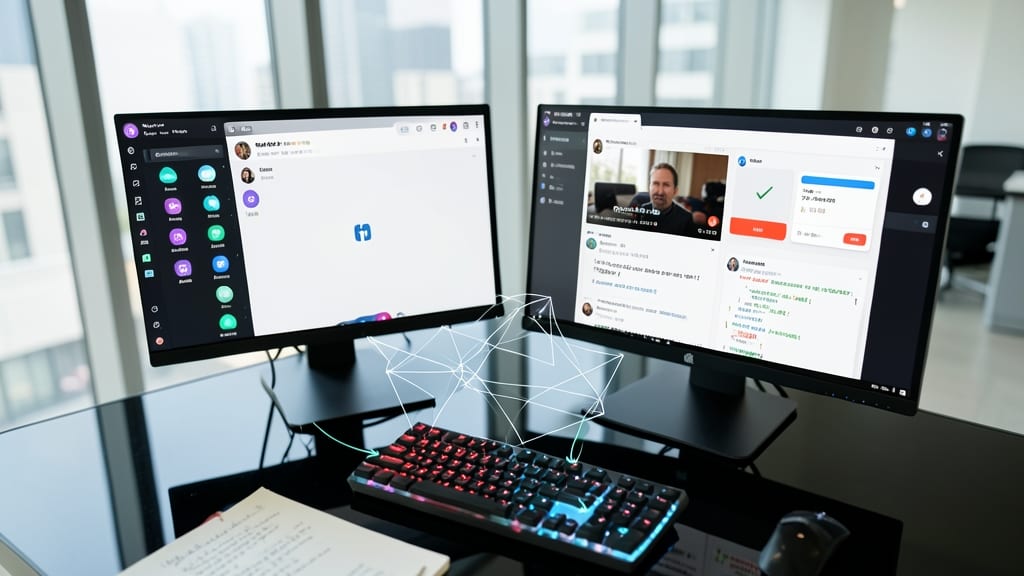
Tired of manually updating Teams channels with meeting notes or task progress? Third-party app integrations turn repetitive tasks into seamless workflows—like auto-posting Zoom recordings or Asana task updates directly into your channel.
Microsoft Teams supports 100+ apps, including GitHub for code updates, Slack for cross-team alerts, and Power BI for live dashboards. With zero-config connectors (like the Zoom-Tabs integration), you can set up automated posts in minutes. The best part? No more context-switching—everything stays in one place, and your team stays aligned without extra effort.
Perfect for hybrid teams juggling multiple tools or remote dev teams tracking GitHub issues alongside daily standups. 💡
Host Regular Channel Cleanup Sessions
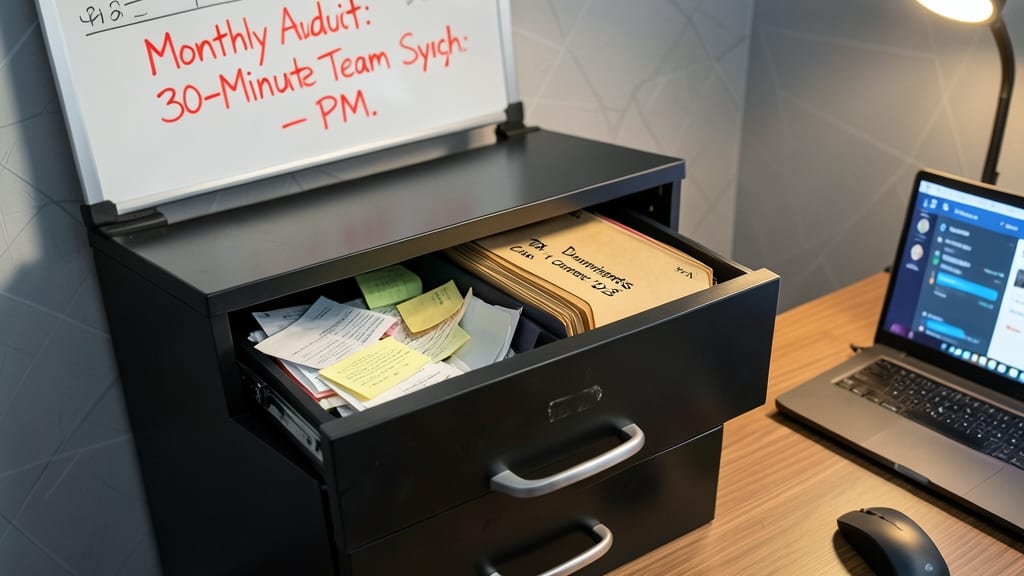
Think of your Teams workspace as a digital filing cabinet—if you never organize it, finding anything becomes a nightmare. Monthly channel audits turn clutter into clarity by systematically reviewing, pruning, and optimizing your team’s digital hub.
Start by scheduling a 30-minute team meeting (yes, really!) to review channel activity metrics in Teams admin. Delete or archive channels with zero posts in 90 days, reorganize tabs to prioritize active projects, and update descriptions for clarity. Use the ‘Pin to top’ feature for high-priority channels to reduce scrolling fatigue. This isn’t just about cleanup—it’s about reclaiming focus.
Teams thriving under tight deadlines or frequent project shifts see the biggest wins. Remote-first companies and fast-moving startups benefit most from this proactive approach, as it prevents the ‘digital hoarding’ that slows down collaboration. 💪