
Software
Microsoft Edge packs hidden features that can transform your browsing experience. These seven pro tips will help you navigate faster, secure your data better, and unlock productivity features most users miss—no extensions required.
Enable Immersive Reader for Focused Reading
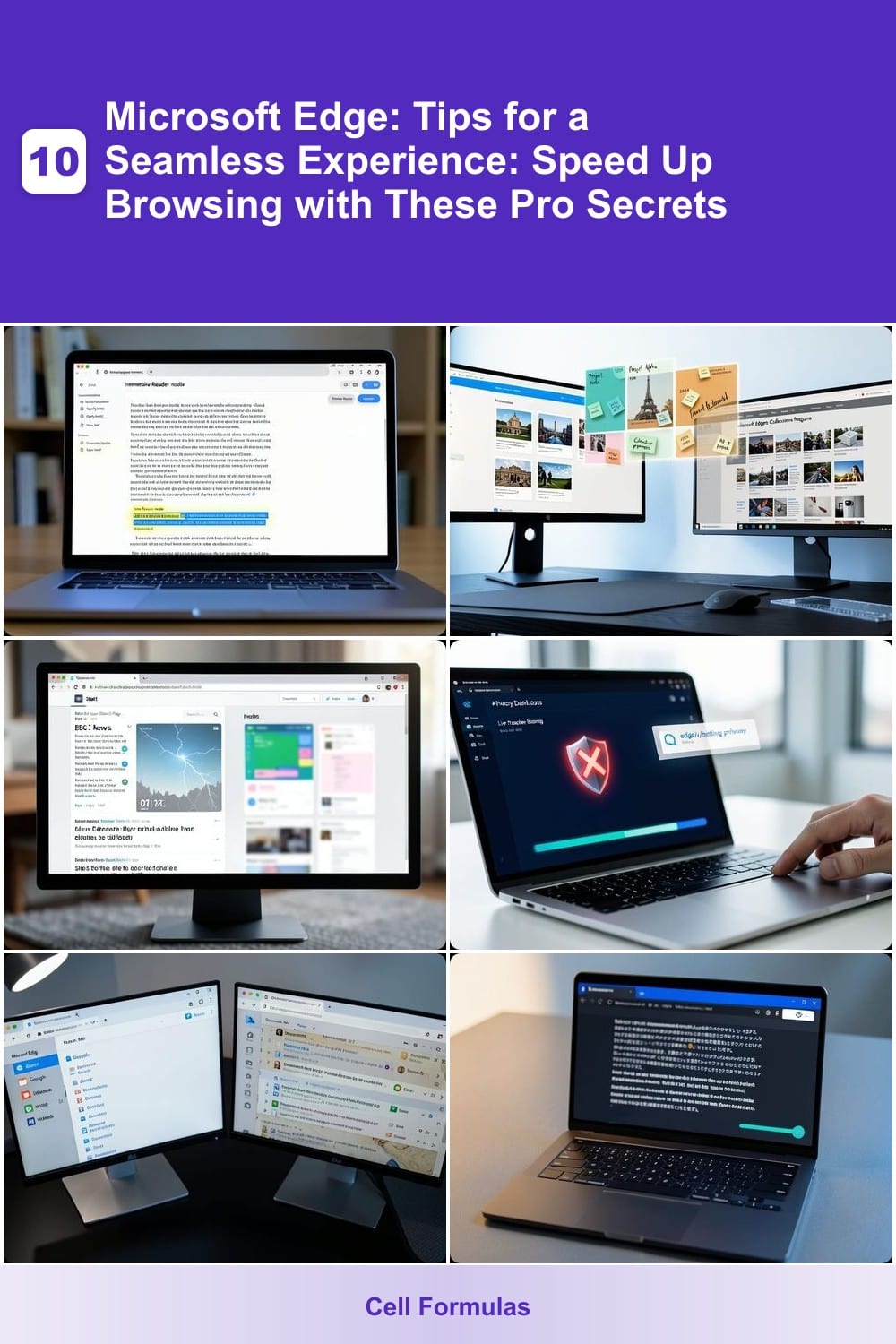
Struggling to focus while reading dense articles or research papers? Microsoft Edge’s Immersive Reader transforms your screen into a distraction-free zone with text-to-speech, customizable fonts, and a line focus mode that highlights one line at a time.
To enable it, simply open an article, click the Immersive Reader icon (looks like an open book) in the toolbar, and choose from 12 fonts, background colors, and speech pacing. The line focus feature reduces visual clutter, while the text-to-speech option lets you listen while following along—perfect for multitasking or retaining information better.
This tool is a game-changer for students, writers, or professionals who need to absorb complex content without losing concentration. Give it a try—your brain (and eyes) will thank you! ✨
Use Collections to Organize Research Instantly
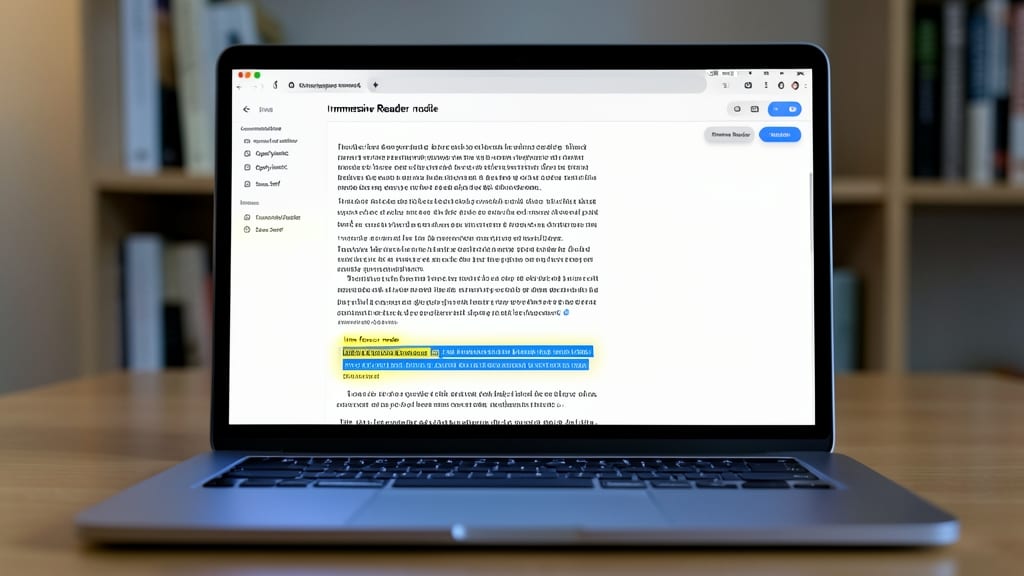
Drowning in research tabs? Microsoft Edge’s Collections feature turns chaos into a visual workspace—no more lost notes or scattered bookmarks. This built-in tool lets you clip web content, add sticky notes, and even drag-and-drop images directly into organized boards, all while keeping everything synced across your devices.
Create a project board in seconds by pinning tabs, saving articles, or annotating screenshots—all with a simple right-click. The drag-and-drop interface feels like digital sticky notes on steroids, and since it’s cloud-synced, your work stays accessible from your laptop, tablet, or phone. Perfect for researchers compiling data or project managers tracking deadlines.
No extensions or extra apps needed—just open Edge, click the Collections icon (or press Ctrl+Shift+P), and start organizing like a pro. Your notes stay searchable, and you can even share collections with teammates. ⚡
Customize Edge’s Start Page for Productivity
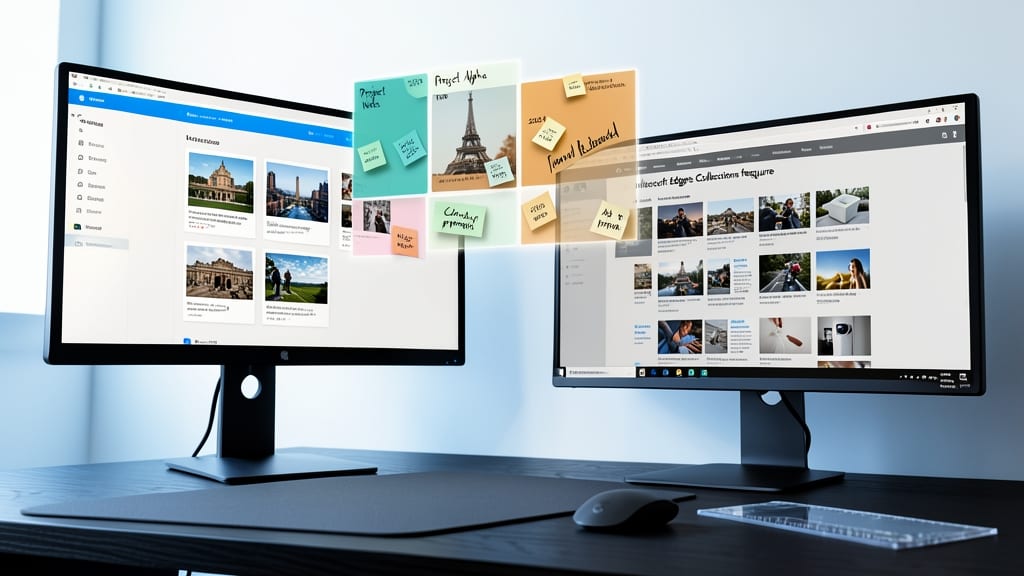
Tired of wasting time scrolling through irrelevant bookmarks every time you open Edge? The Start Page customization feature turns your homepage into a personalized productivity hub—no coding or extensions required.
Add live news feeds, weather widgets, or pinned sites (like Trello, Notion, or your email) to instantly access your most-used tools. The drag-and-drop editor lets you rearrange elements in seconds, while dark mode reduces eye strain. Sync your setup across devices so your dashboard follows you—whether you’re at your desk or on the go.
This is the perfect solution for busy professionals who juggle emails, deadlines, and research. Spend less time searching and more time getting work done. ✨
Block Trackers with Privacy Dashboard
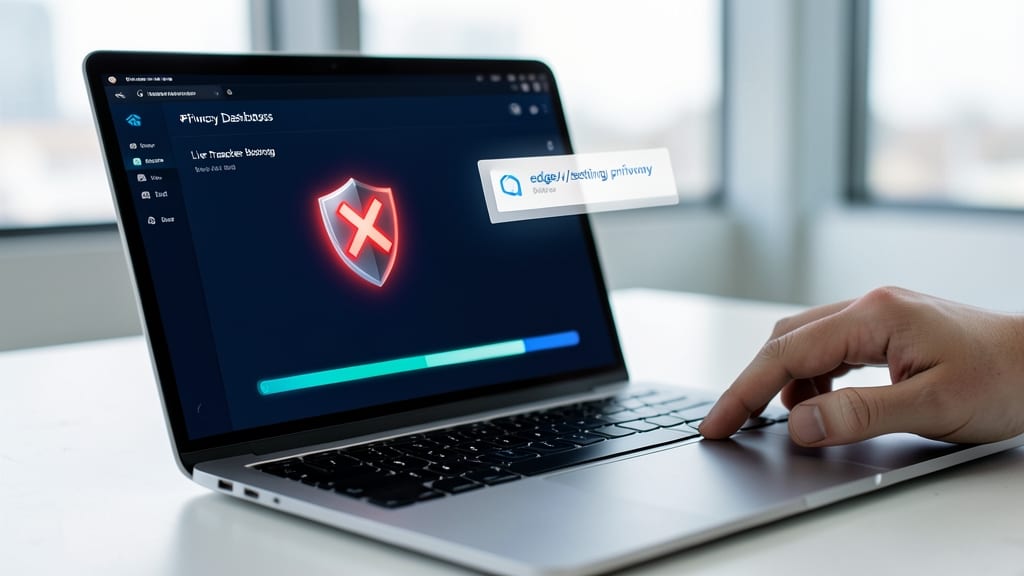
Worried about hidden trackers following your online activity? Microsoft Edge’s built-in Privacy Dashboard acts like a digital bodyguard, scanning websites in real time and blocking third-party trackers before they can gather your data.
Access it via edge://settings/privacy, where you’ll see a live report of blocked trackers—complete with a pie chart breakdown. The dashboard also lets you customize blocking levels (Balanced, Strict, or Off) and review blocked sites. It’s especially powerful against cross-site tracking, which many ad blockers miss.
This is a must for journalists, activists, or anyone who values zero-config privacy. No extensions needed—just toggle it on and browse with confidence. ✨
Speed Up Loading with Vertical Tabs
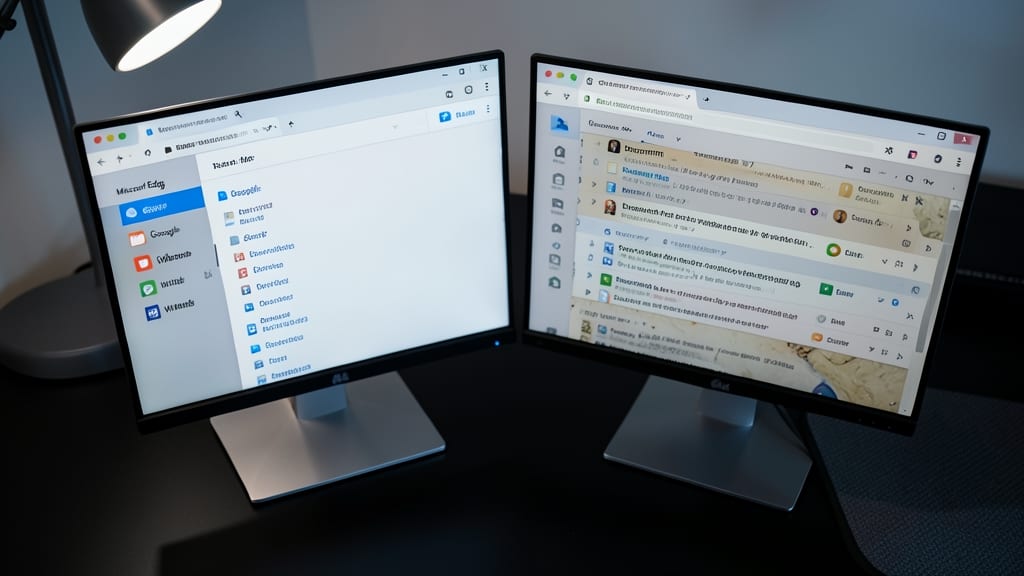
Tired of your browser tab bar turning into a chaotic mess of open windows? Microsoft Edge’s vertical tabs feature is the multitasker’s secret weapon—transforming clutter into a sleek, space-saving sidebar that loads faster and keeps your workflow organized.
With just a click, you can stack tabs vertically along the left side of your screen, freeing up precious horizontal space while maintaining instant access. The feature supports drag-and-drop reordering, favorites pinning, and even grouping for projects—ideal for developers toggling between code repos or writers referencing multiple sources. Plus, it syncs across devices, so your tab chaos stays organized everywhere.
Perfect for power users who thrive on efficiency, vertical tabs turn tab overload into a streamlined experience. Give it a try and reclaim your screen real estate! ✨
Translate Web Pages in Real-Time

Stuck reading a webpage in a language you don’t speak? Microsoft Edge’s built-in translator turns any foreign text into clear, readable content with a single click—no extensions or extra tools required. Just press the translate button in the address bar, and Edge handles the rest in seconds.
The feature supports over 100 languages and includes a pronunciation guide to help you learn new words on the fly. You can even toggle between original and translated text side-by-side for context. For travelers, students, or professionals working with global content, this tool eliminates the need for separate translation apps.
Ideal for quick research or language practice, it’s especially useful when you’re short on time but still need to understand key details. No setup needed—just click and go! ✨
Automate Repetitive Tasks with Edge Workspaces
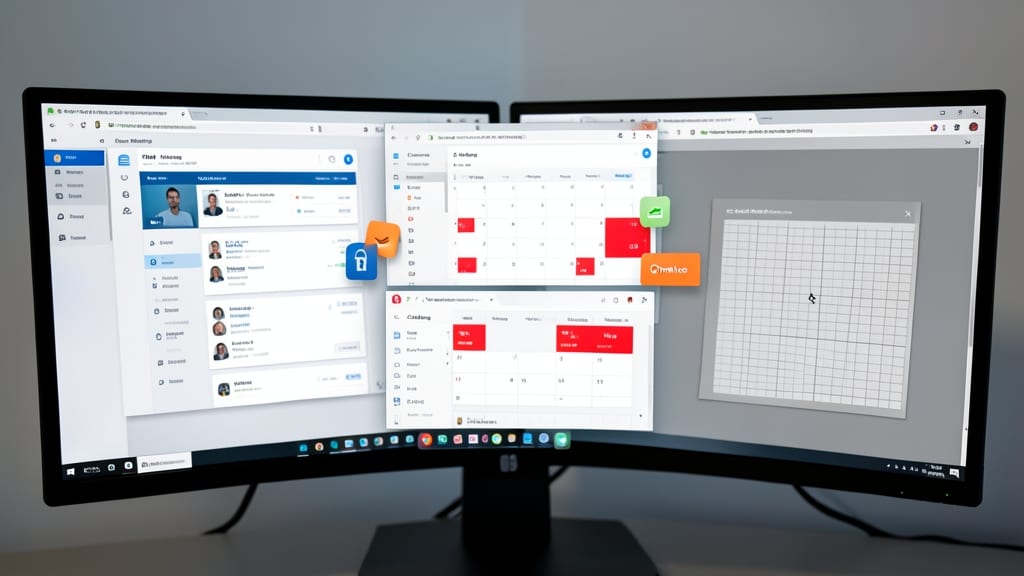
Tired of wasting time reopening the same tabs, extensions, and settings for every project? Edge Workspaces lets you save entire browsing environments—tabs, extensions, and even window positions—so you can switch between them in seconds.
Create a "Client Meeting" workspace with your CRM, calendar, and notes tabs pre-loaded, or a "Coding" workspace with your IDE, GitHub, and Stack Overflow tabs ready to go. The feature even syncs across devices, so your project-specific setups follow you from laptop to tablet. No more tab clutter or lost settings—just instant productivity.
Freelancers, developers, and remote workers will love how Workspaces eliminate setup time. Try it today and reclaim hours of lost productivity! ✨