
Tip & Trick
Remote work offers flexibility—but without proper security, it exposes your data to cyber threats. These 10 battle-tested best practices will help you create an impenetrable digital fortress, whether you're working from a coffee shop or home office.
Multi-Factor Authentication for Every Account

Passwords alone aren’t enough to stop cybercriminals—99.9% of successful hacks exploit weak or stolen credentials. By enabling multi-factor authentication (MFA) on your email, banking, and work accounts, you add a critical second layer that thwarts even the most determined attackers.
Most MFA methods (like authenticator apps, SMS codes, or biometric logins) require two steps: something you know (password) + something you have (phone) or are (fingerprint). Services like Google Authenticator, Microsoft Authenticator, or Duo Security offer zero-config setups that take less than a minute to enable. Even free options like FIDO2 security keys provide phishing-resistant protection.
This is non-negotiable for remote workers—financial institutions, healthcare providers, and tech companies all mandate MFA, and for good reason. Start with your most critical accounts (email, cloud storage, banking) to lock down the gates before attackers even get close. ⚡
Virtual Private Network for Public Wi-Fi

Public Wi-Fi at airports, cafés, and hotels is a convenience—but also a hacker’s dream. Without encryption, your browsing history, emails, and login credentials travel in plaintext, vulnerable to man-in-the-middle attacks that steal data in seconds.
That’s where a VPN (Virtual Private Network) comes in. Services like ProtonVPN or NordVPN route your traffic through an encrypted tunnel, masking your IP and blocking snoopers. Look for WireGuard or OpenVPN protocols (faster and more secure than PPTP) and no-logs policies to ensure privacy. A single click transforms an insecure hotspot into a military-grade secure connection.
This is non-negotiable for remote workers, freelancers, or anyone accessing work emails on public networks. Even a free VPN like Windscribe (with data limits) beats nothing. 💻
Endpoint Detection and Response Software

While traditional antivirus scans for known malware, Endpoint Detection and Response (EDR) software goes further by analyzing behavioral anomalies in real-time—like a cybersecurity guard that stops threats before they execute. Tools like CrowdStrike Falcon or Microsoft Defender for Endpoint track suspicious processes, lateral movement, and even zero-day exploits that bypass signature-based detection.
These solutions offer automated threat hunting, isolating compromised devices instantly and providing forensic details for IT teams. Unlike static antivirus, EDR adapts to evolving attack tactics, making it ideal for remote workers handling sensitive data or connecting to untrusted networks.
Perfect for businesses or freelancers dealing with high-risk environments, EDR transforms passive protection into proactive defense. 💪
Secure Password Manager with Auto-Fill
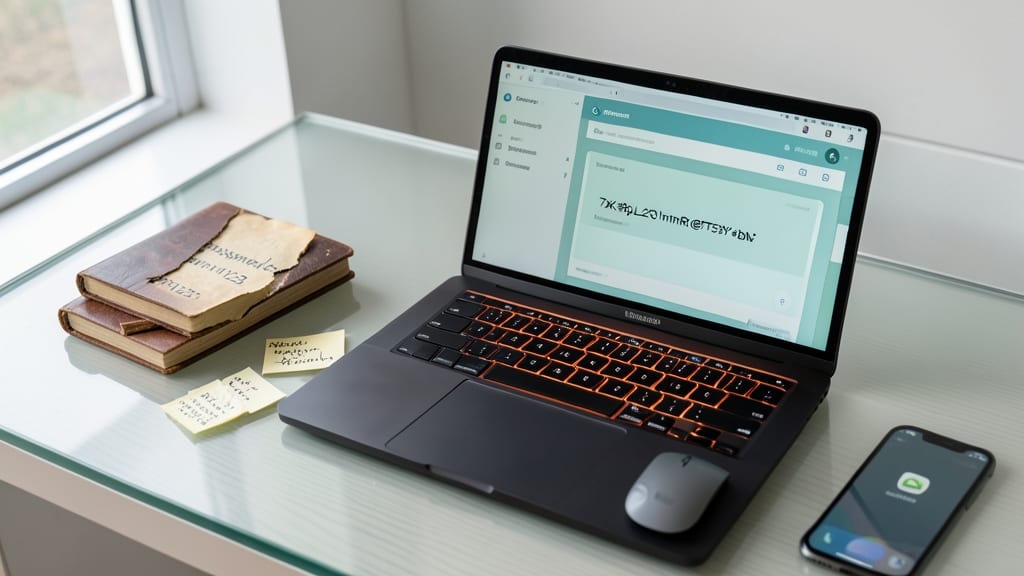
Tired of remembering endless passwords—or worse, reusing the same weak one across accounts? A secure password manager like Bitwarden or 1Password eliminates this risk by generating and storing unique, 25-character passwords for every site, auto-filling them securely in just one click.
These tools encrypt your vault with AES-256-bit encryption (military-grade security) and sync across devices via end-to-end encrypted cloud storage. Features like biometric login and emergency access sharing add layers of protection, while browser extensions make switching accounts effortless. No more sticky notes or "Password123!"—just one master password to remember.
Perfect for remote workers juggling work and personal accounts, password managers turn a common security weak spot into a zero-trust fortress. 💻
Zero-Trust Network Access Policies

What if your network assumed every device—even your own—could already be compromised? That’s the core of zero-trust network access, a model that eliminates implicit trust and requires verification for every access request, no matter where it originates.
Unlike traditional perimeter-based security, zero-trust policies enforce continuous authentication (e.g., beyondCorp by Google or Microsoft Azure AD Zero Trust). Every connection—whether from a laptop, mobile device, or IoT sensor—must pass multi-factor authentication (MFA) and device health checks before granting access. This stops attackers who’ve bypassed initial defenses from moving laterally across your network. Tools like Cisco Secure Access by Identity (ISE) or Palo Alto Prisma Access automate these checks, ensuring only authorized, compliant devices interact with critical systems.
Ideal for businesses handling sensitive data (finance, healthcare, or legal), zero-trust is also gaining traction with remote teams. If your organization relies on cloud apps or hybrid workforces, adopting zero-trust policies is a game-changer for locking down remote access. ✨
Device Encryption for Laptops and Phones

Your laptop or phone could be the weakest link in your security chain—even if you use strong passwords and a VPN. Full-disk encryption ensures that if your device is stolen or lost, all your data remains locked away from prying eyes, rendering it useless to attackers.
On Windows, BitLocker integrates seamlessly with your system, offering AES-256 encryption and recovery options via a USB drive or Microsoft account. For Mac users, FileVault provides similar protection with XTS-AES-128 encryption, automatically locking your drive when your screen sleeps. Both tools require minimal setup—just enable them in your system preferences, and your data stays secure without slowing down performance.
This is a must-have for anyone handling sensitive work files, financial data, or personal privacy. Whether you're a remote worker, freelancer, or just someone who values their digital security, enabling encryption is a zero-effort upgrade that pays off in peace of mind. ✨
Phishing Simulation Training for Teams

Your team’s biggest security risk might be sitting right in front of their screens—human error. Since 90% of breaches start with a phishing attack, tools like KnowBe4 or GoPhish simulate realistic scams (fake invoices, urgent login prompts) to test how quickly employees spot red flags.
These platforms track click rates, report vulnerabilities, and even teach employees how to recognize social engineering tactics in under 10 minutes. The best programs offer customizable templates (e.g., CEO fraud, malicious attachments) and automated reporting to show progress over time. For remote teams, this is the only way to turn your workforce into an active defense—not just a passive target. 💪
Secure Cloud Storage with Access Controls
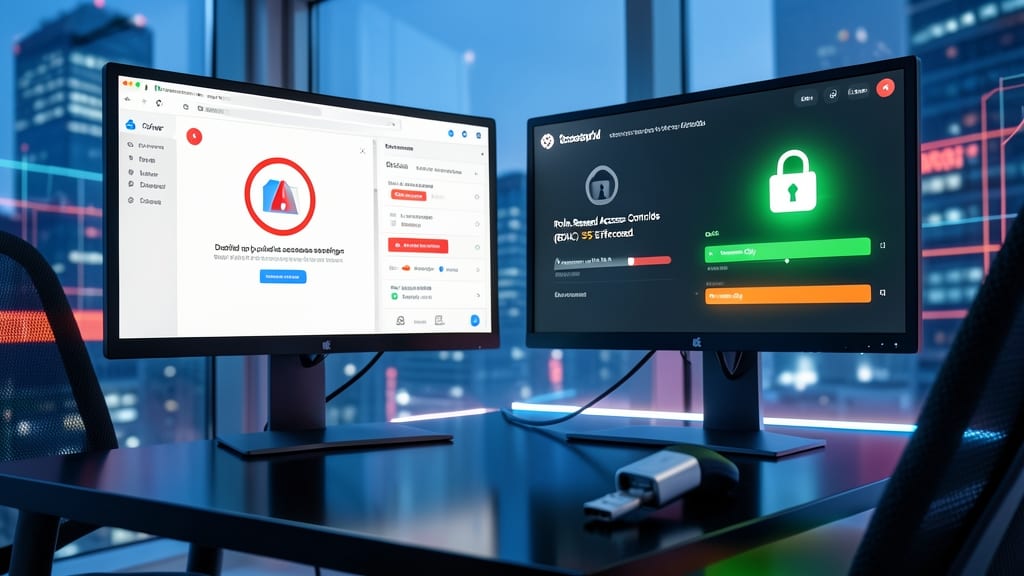
Your cloud storage is a goldmine for hackers—unless you lock it down. Misconfigured shares and over-permissive access controls are the leading causes of accidental data leaks, yet most users never adjust the default settings.
Start by enabling role-based access controls (like Google Drive’s granular permissions or Microsoft OneDrive’s sensitivity labels) to restrict file access to only those who need it. Add versioning (e.g., AWS S3 Object Lock) to protect against ransomware or accidental deletions, and enforce client-side encryption (like Cryptomator) for files containing PII or trade secrets.
This setup is ideal for freelancers handling client data, remote teams collaborating on contracts, or anyone storing sensitive backups. A little extra effort now prevents a nightmare later. ✨
Regular Software Updates and Patching
Cybercriminals don’t wait for you to update your software—they exploit unpatched vulnerabilities within minutes. The average software update patches dozens of security flaws, yet many users delay or ignore them, leaving their systems exposed to ransomware, malware, and data breaches.
Automate updates for your OS (Windows, macOS, Linux), web browsers (Chrome, Firefox, Edge), and critical apps (Zoom, Slack, Adobe Suite) using built-in tools like Windows Update, Apple Software Update, or third-party patch managers like Patch My PC or SolarWinds RMM. Schedule updates during off-hours to avoid disruptions, and prioritize zero-day patches—critical fixes released for newly discovered threats.
This practice is non-negotiable for remote workers handling sensitive data, freelancers with mixed personal/professional devices, or anyone who values peace of mind over convenience. ⚡
Incident Response Plan for Cyberattacks

Even the most secure systems can fall victim to cyberattacks—so having a predefined incident response plan is your safety net. Unlike reactive fire drills, this structured approach ensures you act fast, limit damage, and comply with regulations when breaches strike.
Start with a containment checklist (isolate affected systems, revoke compromised credentials) followed by mandatory reporting to IT/security teams or regulatory bodies. Document every step for audits, then focus on recovery—restoring backups, patching vulnerabilities, and retraining employees. Tools like NIST’s Cybersecurity Framework or ISO 27035 provide templates tailored to remote work risks.
This isn’t just for IT teams—small businesses and freelancers need it too. A well-documented plan turns panic into action, reducing downtime and legal exposure. 💪