
Coding
Struggling with messy text data in Excel? These 10 powerful text functions will transform your spreadsheets—cleaning, formatting, and extracting data with precision. Perfect for analysts, marketers, and anyone working with unstructured text.
Concatenate Function for Combining Text Cells

Tired of juggling separate columns for first names, last names, or street numbers? The CONCATENATE function lets you merge text from multiple cells into one clean, professional entry—perfect for labels, reports, or mailing lists.
Simply type =CONCATENATE(A2, " ", B2) to combine cells A2 and B2 with a space in between. Need more control? Add a delimiter like a comma or hyphen between arguments. For example, =CONCATENATE(A2, "-", B2) creates "SMITH-JOHN" from first and last names. Works seamlessly in Excel 2010 and later, including Excel 365.
This is the go-to tool for anyone formatting addresses, product codes, or full names—ideal for small business owners or analysts who need polished, error-free data. ⚡
Text Function for Converting Numbers to Text
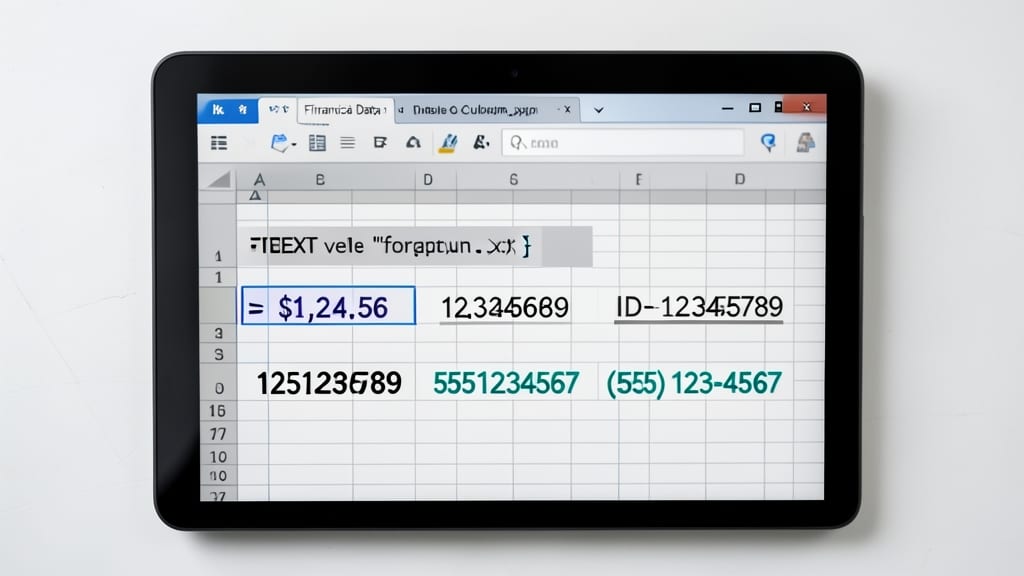
Need to format numbers as text for financial reports, IDs, or phone numbers? The TEXT function in Excel is your go-to tool for converting numeric values into custom text strings—no manual typing required.
Simply use =TEXT(value, "format_text") to transform numbers into dates, currencies, or even plain text. For example, =TEXT(42, "00") turns the number 42 into "42" (as text), while =TEXT(TODAY(), "mm/dd/yyyy") displays today’s date as a formatted string. This function also supports custom number formats, like "$#,##0.00" for currency or "00000" for ZIP codes.
Accountants, data analysts, and anyone working with structured numeric data will appreciate how this function eliminates manual formatting errors and ensures consistency across reports. ✨
Left, Right, and Mid Functions for Extracting Text
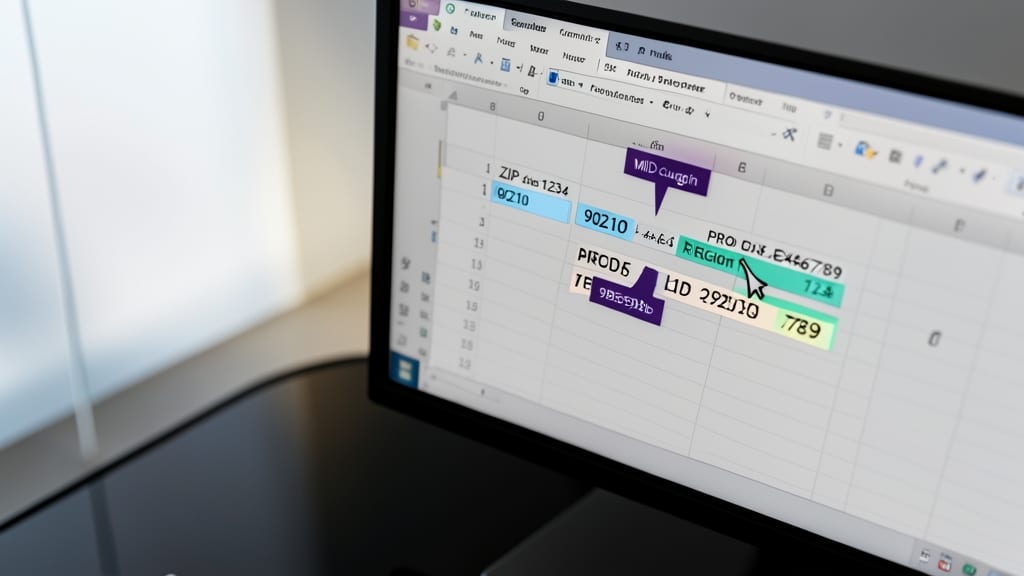
Need to pull out just the first five digits of a ZIP code or the last four digits of a product code? The LEFT, RIGHT, and MID functions in Excel are your precision scalpel for text extraction. Unlike concatenation or case conversion, these functions let you grab exactly the characters you need from any string—no extra work required.
Use LEFT(A1,3) to extract the first three characters (like "ABC" from "ABC123"), RIGHT(A1,2) to grab the last two (like "23" from "ABC123"), or MID(A1,4,5) to pull a middle segment (like "12345" from a longer code). These functions are perfect for parsing ZIP codes, product SKUs, or even extracting initials from full names—all with zero manual copying.
Accountants extracting tax IDs, e-commerce teams standardizing product codes, or HR pulling first initials—these functions save hours of manual data entry. Try them today and watch messy strings transform into clean, usable data. ✨
Trim Function for Removing Extra Spaces

Tired of wasted hours manually cleaning up datasets with extra spaces or inconsistent formatting? The TRIM function in Excel is your secret weapon for instantly tidying up messy text—whether it’s imported CSV files, user-entered data, or legacy spreadsheets.
This function removes leading, trailing, and duplicate spaces between words in a single step. For example, =TRIM(" Hello World ") transforms the string into "Hello World"—no manual edits required. It even handles hidden spaces from copy-pasted text or inconsistent formatting in databases. Best of all, it’s zero-config: just paste the formula, and Excel does the rest.
Perfect for analysts, marketers, or anyone managing datasets where clean formatting is critical—like reports, customer lists, or financial records. ⚡
Substitute Function for Replacing Text Patterns
Tired of manually editing inconsistent text across entire datasets? The SUBSTITUTE function in Excel is your time-saving ally, replacing specific words, symbols, or characters with a single formula. Whether you're standardizing abbreviations (e.g., "St." to "Street"), correcting typos, or removing special characters, this function handles it all without manual edits.
Use the syntax =SUBSTITUTE(text, oldtext, newtext, [instancenum]) to replace every occurrence (or a specific instance) of oldtext with new_text. For example, =SUBSTITUTE(A1, "&", " and ") converts "John & Mary" to "John and Mary" instantly. It even supports wildcards (like *) for partial matches, making it versatile for complex datasets.
This function is a lifesaver for data analysts, marketers, or anyone cleaning up messy imports. Try it on your next dataset—you’ll wonder how you ever lived without it! ✨
Find Function for Locating Text Positions

Need to locate a specific character or substring within a text string? The FIND function is your precision tool, returning the exact position number where your search text appears—critical for parsing data dynamically.
Use =FIND(searchtext, withintext) to locate email domains (e.g., =FIND("@", A1)), validate phone number formats, or extract substrings based on known patterns. Unlike SEARCH, it’s case-sensitive and requires an exact match, making it ideal for structured data validation. Combine it with LEFT/RIGHT for advanced parsing (e.g., extracting everything after "@" in emails).
Perfect for developers validating API responses, analysts cleaning datasets, or anyone needing to automate text-based logic without manual scanning. 💡
Len Function for Counting Characters

Need to ensure your data meets strict formatting rules? The LEN function is your secret weapon for counting characters in text strings—ideal for validating ZIP codes, phone numbers, or password requirements.
Simply type =LEN(text) in a cell, and Excel returns the exact character count. For example, =LEN("Excel2023") returns 8, while =LEN(A2) dynamically checks cell A2’s content. Pair it with IF statements to flag invalid entries, like passwords under 8 characters or ZIP codes exceeding 5 digits.
Perfect for developers testing API responses, marketers cleaning email lists, or anyone enforcing data consistency. ⚡
Upper, Lower, and Proper Functions for Text Case
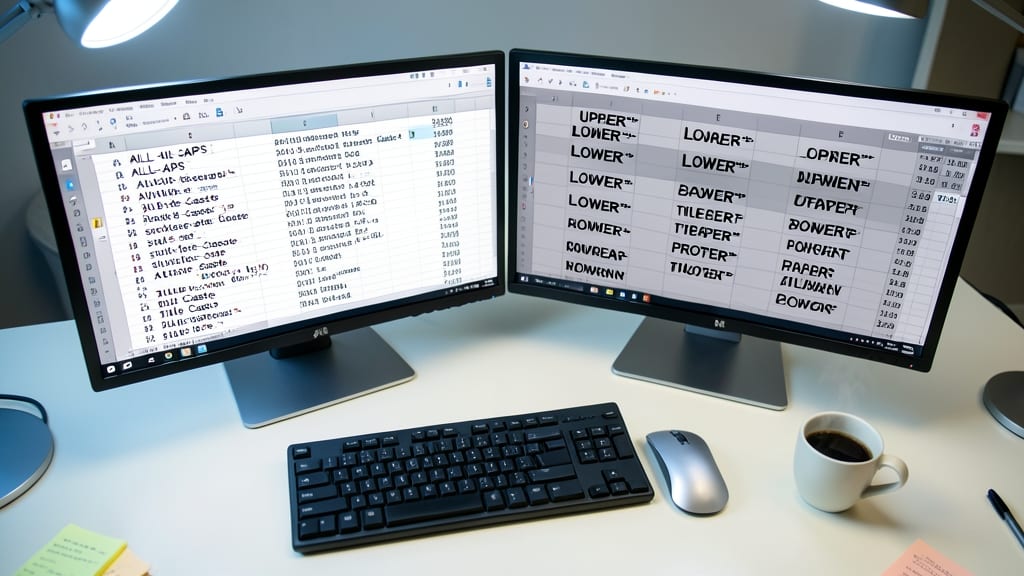
Tired of inconsistent text cases ruining your polished reports? The UPPER, LOWER, and PROPER functions in Excel are your secret weapons for instant text standardization. Whether you're formatting customer names, database entries, or report titles, these functions ensure uniformity with just a few clicks.
Use UPPER() to convert all text to uppercase (e.g., "John Doe" → "JOHN DOE"), LOWER() for lowercase (e.g., "HELLO" → "hello"), or PROPER() to capitalize the first letter of every word (e.g., "john doe" → "John Doe"). These functions work seamlessly with existing data—no manual editing required. For example, PROPER() is perfect for cleaning up messy imported datasets where names or titles appear in mixed case.
Accountants, HR professionals, and data analysts will love these for maintaining professional standards. Try them today to eliminate formatting headaches in seconds! ✨
Replace Function for Advanced Text Replacements

Tired of running multiple SUBSTITUTE formulas to clean messy data? The REPLACE function lets you swap out text patterns in a single step—even using wildcards for dynamic replacements.
With REPLACE(oldtext, startnum, numchars, newtext), you specify the exact position and length of text to replace. Need to fix inconsistent date formats (e.g., "01/01/2023" → "Jan 1, 2023")? Or standardize product codes by replacing variable prefixes? Wildcards like ? and * let you target patterns instead of exact matches.
This is the go-to for data analysts transforming raw datasets into clean, consistent formats—no more chaining functions or manual edits. ✨
Char Function for Extracting Single Characters

Need to pull a single character from a string—like extracting a middle initial or decoding a hidden symbol? The CHAR function in Excel does exactly that, using a numeric position to retrieve specific characters with precision.
Simply use =CHAR(positionnumber) where the positionnumber is the spot in the string you want (e.g., =CHAR(3) grabs the third character). This is perfect for parsing CSV files, extracting initials, or isolating symbols like currency signs or emojis. Unlike LEFT or MID, which extract ranges, CHAR zeroes in on one character at a time.
Data analysts and developers working with structured text—like parsing codes or cleaning datasets—will find this function a game-changer for granular text extraction. ⚡